March 31, 2026

10
min read
Don't Sweat It: Easy Ways to Migrate Multiple Email Accounts
Master business email migration effortlessly: step-by-step guides, tools, best practices & zero-downtime tips for seamless...
Master business email migration effortlessly: step-by-step guides, tools, best practices & zero-downtime tips for seamless...


Business email migration is the process of moving your organization's email data — including messages, contacts, calendars, and folders — from one email platform to another.
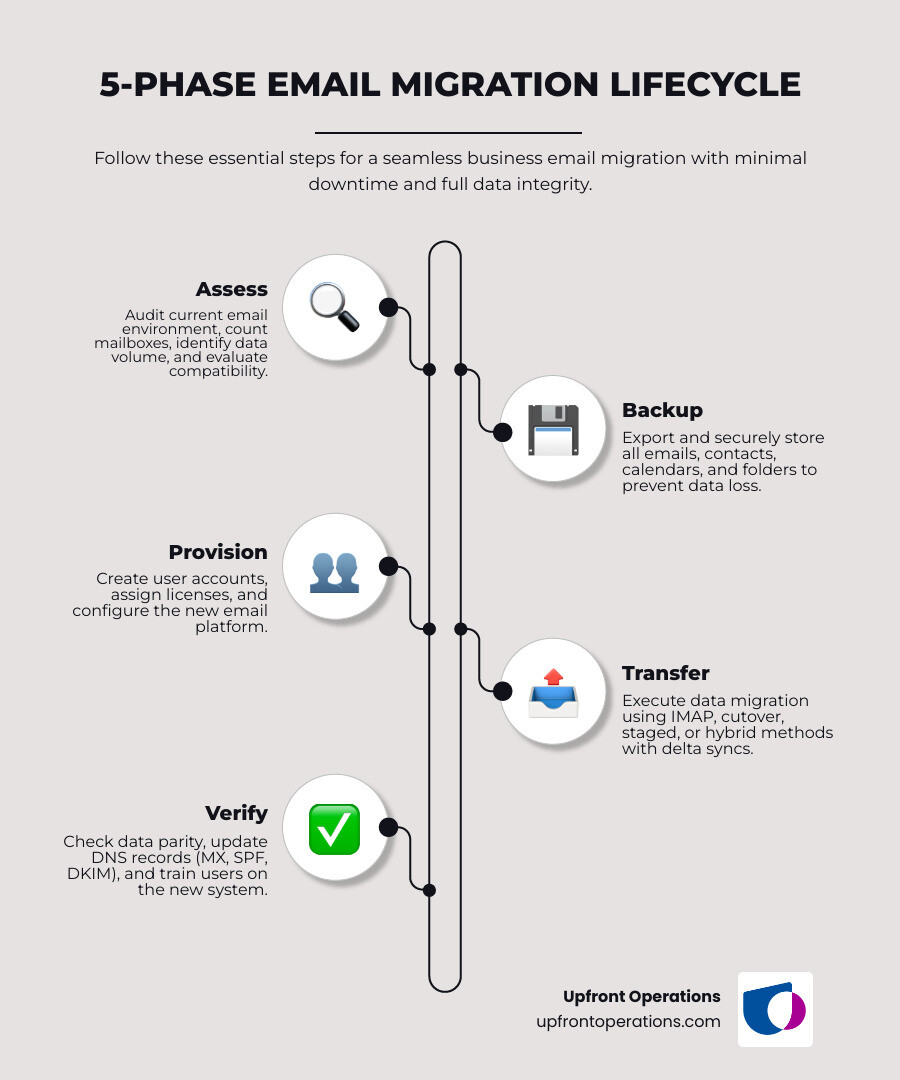
Here's a quick overview of how it works:
| Step | What Happens |
|---|---|
| 1. Assess | Audit your current email environment and mailbox count |
| 2. Backup | Export and secure all existing email data |
| 3. Provision | Set up user accounts on the new platform |
| 4. Transfer | Move data using a migration tool (IMAP, cutover, staged, or hybrid) |
| 5. Verify | Confirm data integrity, update DNS records, and train users |
Whether you're upgrading from a legacy system, switching providers for better security, or simply shedding an embarrassing personal email address for a professional domain, the stakes are real. A poorly planned migration can mean lost emails, hours of downtime, and frustrated employees.
The good news? With the right process and tools, migrating multiple email accounts doesn't have to be painful.
I'm Ryan T. Murphy, founder of Upfront Operations, and over the past 12 years I've guided dozens of businesses — from early-stage startups to enterprises with thousands of employees — through complex business email migration projects as part of broader systems and operations overhauls. Let's walk through exactly how to do this the right way, step by step.
Business email migration word list:
When we talk about business email migration, we aren't just hitting "forward" on a few messages. We are moving an entire communication infrastructure. Depending on the size of your team and the system you are leaving behind, there are four primary ways to get the job done.

This is the "all-at-once" approach. In a cutover migration, every mailbox is moved from the old server to the new one in a single go. Microsoft notes that while you can technically move up to 2,000 mailboxes this way, they strongly recommend it only for organizations with 150 users or fewer. It’s fast and relatively simple, but it requires a clean break from the old system.
If you have a massive amount of data—specifically if you’re running an older version like Exchange 2003 or 2007 with more than 2,000 mailboxes—a staged migration is the way to go. We move users in batches over a period of weeks or months. This prevents the "system shock" of a single-day move but requires more coordination to ensure everyone can still communicate during the transition.
A hybrid migration is the gold standard for medium-to-large businesses using Exchange 2010 or later. It allows your on-premises mailboxes and your new cloud-based mailboxes to exist in the same environment. You can move users back and forth as needed, making it the most flexible (though most technically complex) option.
If you are moving from a provider like Yahoo, GoDaddy, or a personal Gmail account, we typically use IMAP migration. This method specifically pulls email data (messages and folders) from the source server. IMAP is a bit "bare bones"—it usually doesn't bring over your contacts or calendars automatically, so those require a separate export/import process.
| Migration Type | Best For | Max Mailboxes | Key Limitation |
|---|---|---|---|
| Cutover | Small Businesses | 2,000 (150 recommended) | Everything moves at once |
| Staged | Legacy Enterprises | 2,000+ | Only for Exchange 2003/2007 |
| Hybrid | Large Teams | Unlimited | Requires complex server sync |
| IMAP | Non-Exchange Sources | 100 per batch | No contacts or calendars |
For a deeper dive into these technical paths, you can check out the Official Microsoft guide on Exchange migration paths.
In 2024, you don't have to manually drag-and-drop folders. There are powerful tools designed to automate the heavy lifting.
Google has also simplified things with their documentation on the new data migration service, which supports up to 1,000 users from Google Workspace or 250 from Exchange Online.
The biggest fear in any business email migration is "The Black Hole"—that period where emails are sent but never arrive because the "pipes" are being switched. We minimize this through a few pro moves:
Success is all in the preparation. If you wing it, you'll lose data. If you follow the checklist, it’s a breeze.
At Upfront Operations, we specialize in these types of technical services, taking the burden off your internal team so you can focus on selling.
Data isn't always "clean." Before we push the "Go" button, we have to handle the technical nitty-gritty:
You can learn more about our features and how we handle these complex configurations on our features page.
Once the data is flowing, we have to tell the rest of the world where to find you. This involves updating your DNS (Domain Name System) records:
We don't just move data; we protect it. Security is the number one reason businesses move to platforms like Google Workspace, which blocks 99.9% of spam, phishing, and malware.
During the migration, we perform "Data Parity" checks. This means we compare the number of items in the old mailbox to the new one. If the old one had 5,402 emails and the new one has 5,402, we know the "move" was successful. We also look for duplicate detection to ensure your inbox doesn't become a cluttered mess post-migration.
Our commitment to quality ensures that your business data remains encrypted and secure throughout the entire transit.
The job isn't done just because the data is moved. Your team needs to know how to use the new tools.
In a standard business email migration, we move:
What usually doesn't move:
The actual "data transfer" speed depends on three things: the total size of the mailboxes, the "velocity" of your internet connection, and server throttling (how fast the provider allows us to pull data).
While the data might move in a few hours, we always recommend a 48-72 hour observation period. This allows for global DNS propagation and ensures that no "stray" emails are still heading to the old server.
Absolutely. In fact, this is one of the most common requests we get from solopreneurs and small businesses. We use the GWMME tool or the new Data Migration Service to pull your history from yourname@gmail.com into name@yourbusiness.com. This centralizes your data and immediately makes your business look more professional.
Migrating your business email is a milestone. It’s a sign that your business is growing, becoming more professional, and taking security seriously. Whether you're a solopreneur needing a quick IMAP transfer or a scaling company requiring elite fractional sales operations support, we are here to help.
At Upfront Operations, we believe in making high-level operations accessible. We offer on-demand microservices—including business email migration and hosting—specifically designed for small businesses that need expert help without the agency overhead. From lead nurturing to pipeline optimization, we ensure your tech stack supports your growth rather than hindering it.
Ready to make the move? View our transparent pricing for email migration support and let's get your team set up for success!